Luka Mrkić
Head of BD
Insights, strategies, and real-world playbooks on AI-powered marketing.
MAY 27, 2026
How to Automate Competitor Pricing Alerts with Make and ChatGPT
A Make scenario can watch your competitors’ pricing pages every morning, ask ChatGPT to read the diff, and email you a one line summary with the plan, the old price, the new price, and the source quote. The scenario is five modules: Scheduler, HTTP, Data Store, OpenAI, and Email plus Sheets. The hard part is the diff prompt and the structured output, not the wiring.
This guide walks through the scenario, the prompts, the alert format, and the standards to evaluate the build. If you are deciding who should set this up for your team, the second half doubles as a checklist.
Key Takeaways
- Most SaaS pricing pages are scrapeable with plain HTTP from a Make module. The ones that are not (Cloudflare, heavy JavaScript) need a managed scraper as a per-URL fallback.
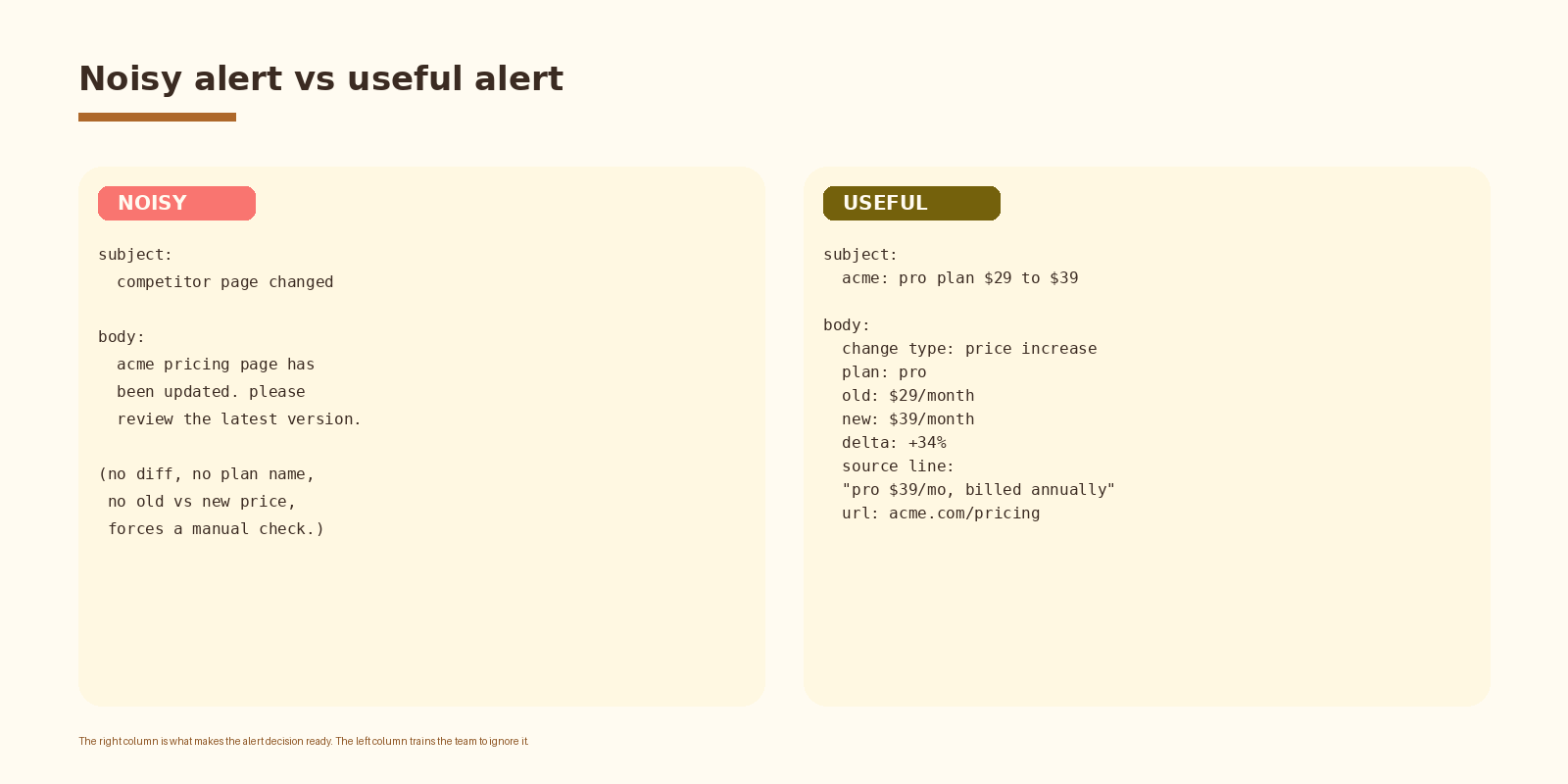
- A useful alert names the plan, the old and new price, the percentage delta, and the exact source line. An alert that just says “the page changed” trains the team to ignore it.
- The OpenAI module returns strict JSON with a fixed schema. That contract is what makes the Sheet log and the email subject usable a month later.
- Costs land in single digit dollars per month for ten to fifteen competitors at daily cadence. Cost is dominated by how chatty the prompt is, not by the scraping.
What this scenario actually does
Once a day, the scenario walks a list of competitor pricing URLs. For each one it pulls the current HTML, compares it to a stored snapshot from yesterday, and asks ChatGPT to read the diff. If the diff describes a real pricing move (a new plan, a list price change, a free tier narrowing), the scenario writes a row to a Google Sheet and sends a one line email. If the diff is cosmetic (a new testimonial, a layout tweak, a copy change unrelated to pricing), the scenario logs it to the sheet and stays silent on email.
The result for the team is a single inbox-friendly digest of competitor pricing moves and a Sheet that becomes a living price history. The result for the buyer is that your sales and marketing teams stop finding out about pricing moves on calls.
Scenario architecture
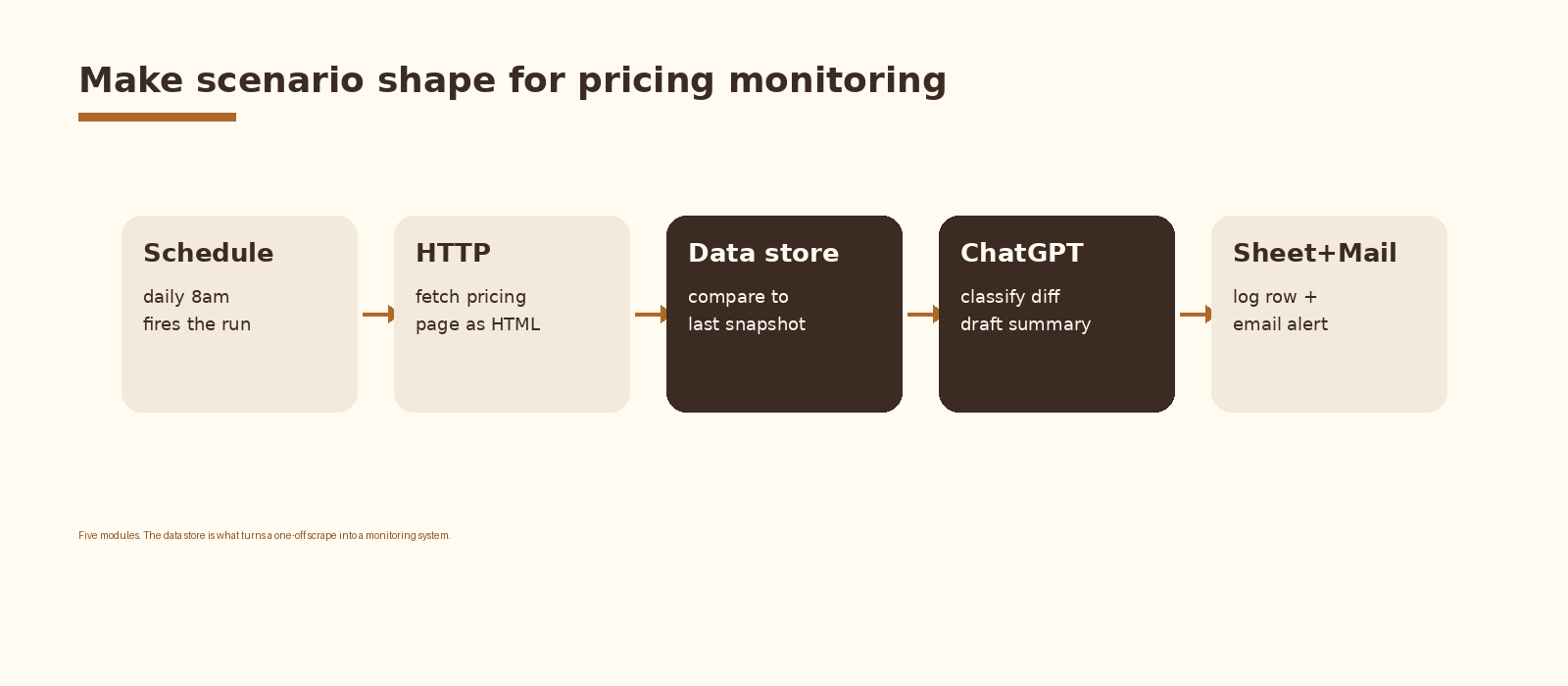
Five modules. A Scheduler module fires the run on a cron expression. An HTTP module fetches the current pricing HTML for each competitor URL. A Data Store module holds yesterday’s snapshot so the scenario can diff. An OpenAI module reads the diff and returns a structured object with the change classification. A Google Sheets module writes the row, and an Email module sends the alert when the change is material.
Step 1. Build the competitor list as a data store
Create a Make Data Store named competitors with a structure that has the URL, the human readable competitor name, the last seen HTML, and the last seen hash. Seed the store with one record per competitor before turning the schedule on. The first run will scrape each URL, compute a hash, and save the baseline. Subsequent runs compare the new hash to the stored one.
Treat the list as data the team can edit. The fastest way to give non engineers control is to keep a small Google Sheet (Competitor, URL, Owner, Active) and have the scenario read that sheet at the start of every run, then upsert the Data Store. The Sheet is the human surface, the Data Store is the operational surface.
Step 2. Fetch the pricing page
An HTTP Get module fetches the pricing URL. Set the response handling to parse the body as plain text. Most modern SaaS pricing pages return server rendered HTML with the prices in the source. A grep for a currency symbol or a known plan name on the fetched body tells you whether you actually got the priced content.
Two failure modes show up the first week. A 403 or a Cloudflare challenge means the site does not want plain HTTP traffic. A 200 response with an empty pricing section means the page renders prices with JavaScript. Either case requires a managed scraper as a fallback. Plug a scraping API module into the HTTP branch behind a router and use it only on the URLs that need it.
If you want this set up cleanly inside your stack with logging, retries, and a feedback loop into a CRM, that is the kind of work we ship at Espressio.
Step 3. Diff against yesterday
Hash the fetched body and compare to the stored hash. If the hashes match, end the run for that URL. No diff, no model call, no alert. This single short circuit is what keeps the monthly OpenAI bill small. Most days, on most pricing pages, nothing has changed.
When the hash changes, build a small diff payload. Make’s Set Multiple Variables module is enough. Capture three things: the previous body, the current body, and a small header with the competitor name and URL. Cap each body at a few thousand characters before passing it to the model. A homepage redesign that bleeds into the pricing page can blow up the token bill and the model loses focus on the actual pricing rows.
Step 4. Ask ChatGPT to classify the change
This is where the scenario earns its keep. The prompt asks ChatGPT to read the two versions and return a strict JSON object with a small fixed schema. The downstream Sheet and Email modules consume that JSON without parsing English. The same prompt template will produce the same shape every run, which is what makes the Sheet usable a month later.
system prompt:
You classify changes between two versions of a competitor pricing page.

Return strict JSON with these keys:
  change_type: one of [new_plan, price_increase, price_decrease,
    free_tier_change, seat_or_unit_change, bundle_change,
    discount_change, cosmetic]
  plan: the plan name the change applies to, or ""
  old_value: the prior price or feature, or ""
  new_value: the new price or feature, or ""
  delta_pct: number, or 0
  summary: one sentence, max 25 words
  source_line: the exact line from the new page that triggered the call
  material: true if a sales or marketing team should see this today,
    false if it is cosmetic

If nothing meaningful changed, set change_type="cosmetic" and material=false.
Three small things in that prompt do most of the work. Naming the change types explicitly means the Sheet column stays clean rather than holding a hundred different freeform labels. Asking for the exact source line means the alert quotes the page back to the reader, which is the difference between a useful alert and a vague notification. The material boolean is the gate that decides whether the scenario sends an email or only writes a log row.
Step 5. Write the row and send the alert
Two destinations. The Sheets module appends a row for every run, material or not, so the team has a full history of competitor pricing moves the agent has ever seen. The Email module fires only when material is true. The email subject names the plan and the price, and the body is a four line summary plus the source line and the URL. No paragraphs, no preamble.
Pick the subject template carefully. The whole point of the scenario is that the team gets the news at a glance. A subject like “competitor pricing change detected” trains people to ignore the inbox. A subject like Acme: Pro plan $29 to $39 delivers the news in twelve characters and the team stays in the loop without opening the message.
What to track on a pricing page
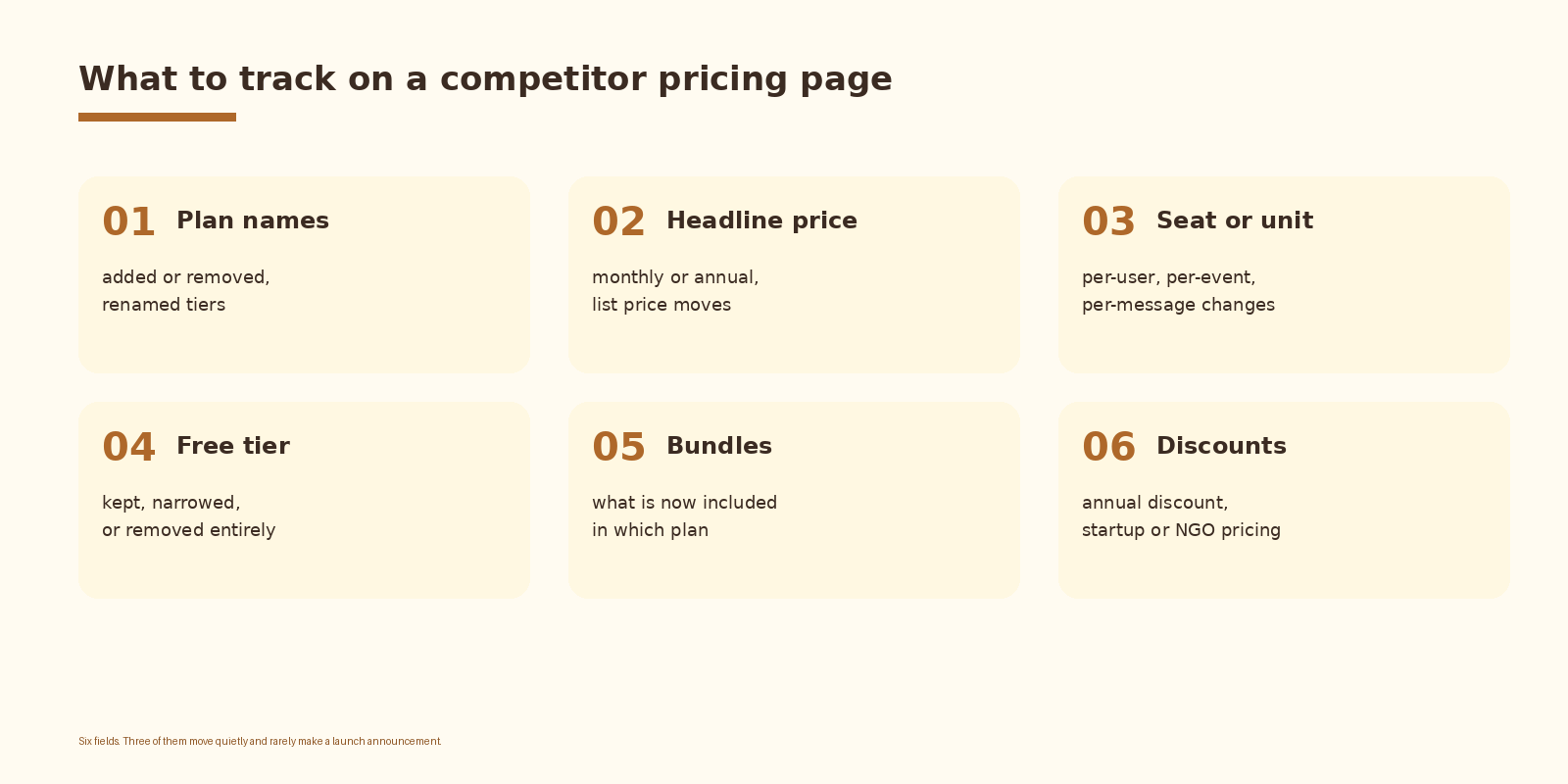
Six fields cover almost everything competitors move. Plan names and headline prices change loudly. Seat-and-unit pricing, free tier scope, bundle composition, and discount terms tend to change quietly and almost never make it into a launch announcement. The agent is most useful on the quiet ones.
Common mistakes
- Skipping the hash check. Every run calls the model and the monthly bill climbs out of proportion to the value.
- Letting ChatGPT freelance the output. Free form prose breaks the Sheet schema by the second week and the alert subject becomes generic.
- No material gate. Every cosmetic copy tweak becomes an email and the team filters the address.
- Treating one HTTP module as enough. The day a target ships on Cloudflare, the scenario silently breaks and you stop noticing pricing moves.
- Writing the alert before agreeing on the email subject template. The subject is the alert; if it is not specific, the rest does not matter.
How to know it is working
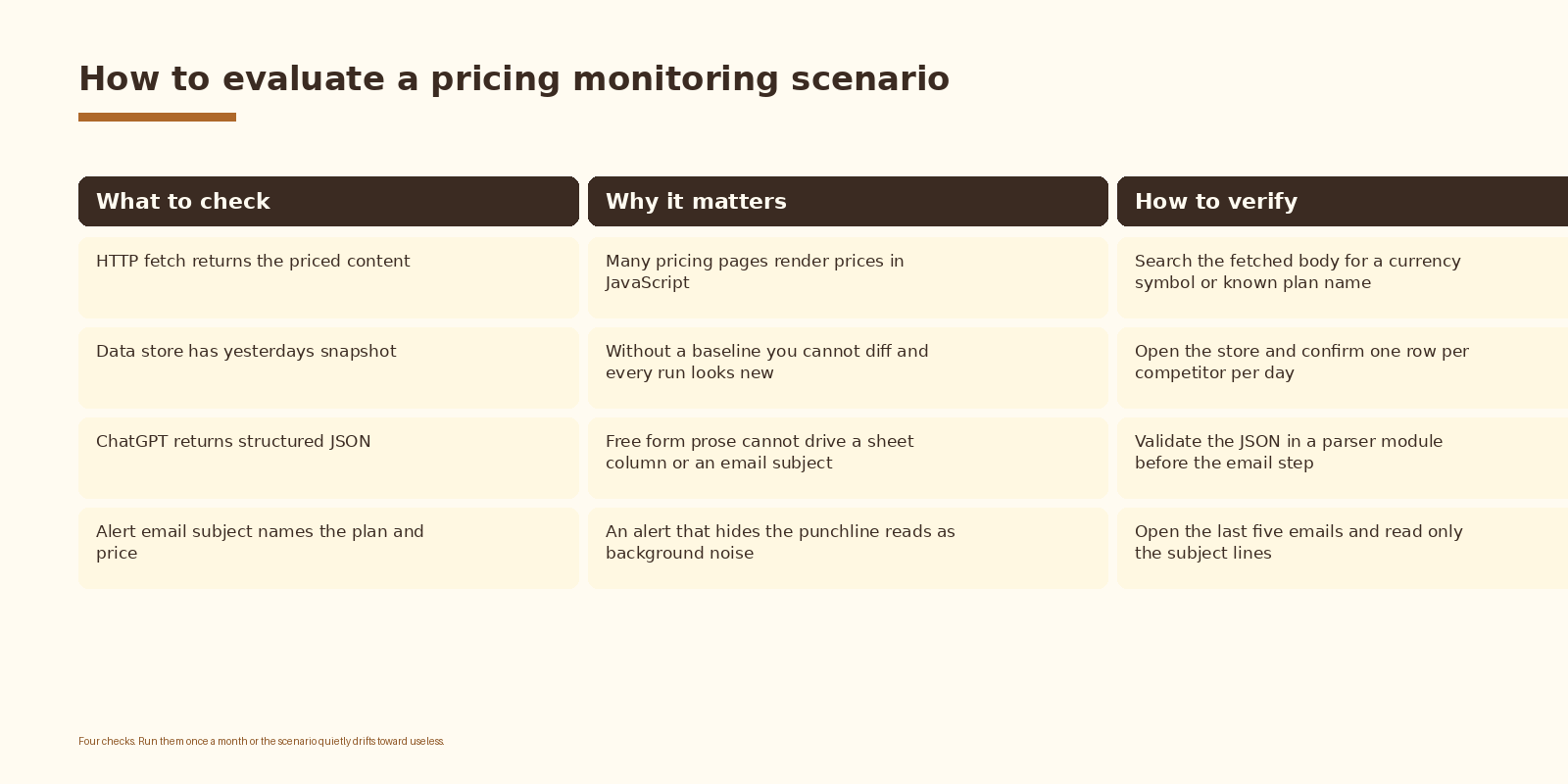
Two metrics. The first is the fetch success rate per URL. If a target drops below ninety percent over a week, the scraper layer needs the managed fallback. The second is the action rate: of the material alerts the scenario sent in a month, how many led to a real conversation (a sales rebuttal updated, a deal repriced, a marketing page changed). If the action rate trends to zero, retune the material gate or trim the URL list before assuming the scenario is broken.
FAQ
Can I do this without a paid scraper?
Often, yes. Most server rendered SaaS pricing pages respond fine to a Make HTTP module. The ones that do not (heavy JavaScript, anti-bot challenges, geo-fenced pricing) need a managed scraper as a per-URL fallback. Start without it and add it the first time a competitor breaks the run.
Which ChatGPT model should I use?
A mid-tier model is the default. It handles the JSON contract reliably and keeps spend predictable. Reach for a frontier model only when you need it to read longer pages or compare more than two snapshots at once. Cheaper models will save you money and lose you consistency on the schema.
How often should the scenario run?
Daily is the right cadence. Hourly is almost always wasted spend; pricing pages do not move that often. Weekly is too slow because the team finds out about price changes after the next sales call.
What about competitors with calculator-style pricing?
Custom and calculator pricing pages do not diff well as HTML. For these, either drop the URL from the list or capture screenshots and let a multimodal model compare them. For most teams the first option is the right one.
Does the same scenario work for monitoring our own pricing page?
Yes. Adding your own pricing URL to the list gives you a free regression check. The scenario tells you when your own pricing copy changed in a way you did not expect, which is the cheapest QA layer you will ever set up.
What to do next
- Build the competitor sheet with URL, name, and owner. Keep it under fifteen rows for the first month.
- Stand up the Make scenario for one URL. Verify the fetched body contains the prices.
- Add the Data Store and the hash check. Run for a week and watch how many days are no-ops.
- Wire the OpenAI module with the schema in the prompt above. Validate the JSON shape on a real diff.
- Add the Sheets log and the email step. Send to a dedicated address before exposing it to the wider team.
- Review the action rate after thirty days. Tune the material gate or the URL list before adding more competitors.
If you want automation like this set up cleanly inside your competitive intelligence stack, let’s talk.
Related Espressio guides