Shann Holmberg
Head of Product
Insights, strategies, and real-world playbooks on AI-powered marketing.
APR 17, 2026
How to Connect Claude to HubSpot for AI Sales Follow-Up
Leads are 100 times more likely to qualify if you contact them within five minutes of showing intent than if you wait 30 minutes. The average sales rep takes 42 hours to follow up (Verse.ai, 2025). The bottleneck is the time it takes to pull context from HubSpot and write something worth replying to.
CRM data sits in HubSpot; writing intelligence sits in Claude. Right now, reps copy-paste that context manually, which is why most follow-ups are generic and most deals go cold.
This guide covers three paths for connecting Claude to HubSpot, a step-by-step setup for the native connector (5 minutes, no code), four prompt templates you can use today, and an n8n workflow that fires a personalized follow-up the moment a deal stage changes.
Key Takeaways
- The official HubSpot connector for Claude lets reps generate personalized follow-up emails from live CRM data (deal stage, last activity, job title) directly inside Claude’s chat. Setup takes under 5 minutes with no code required.
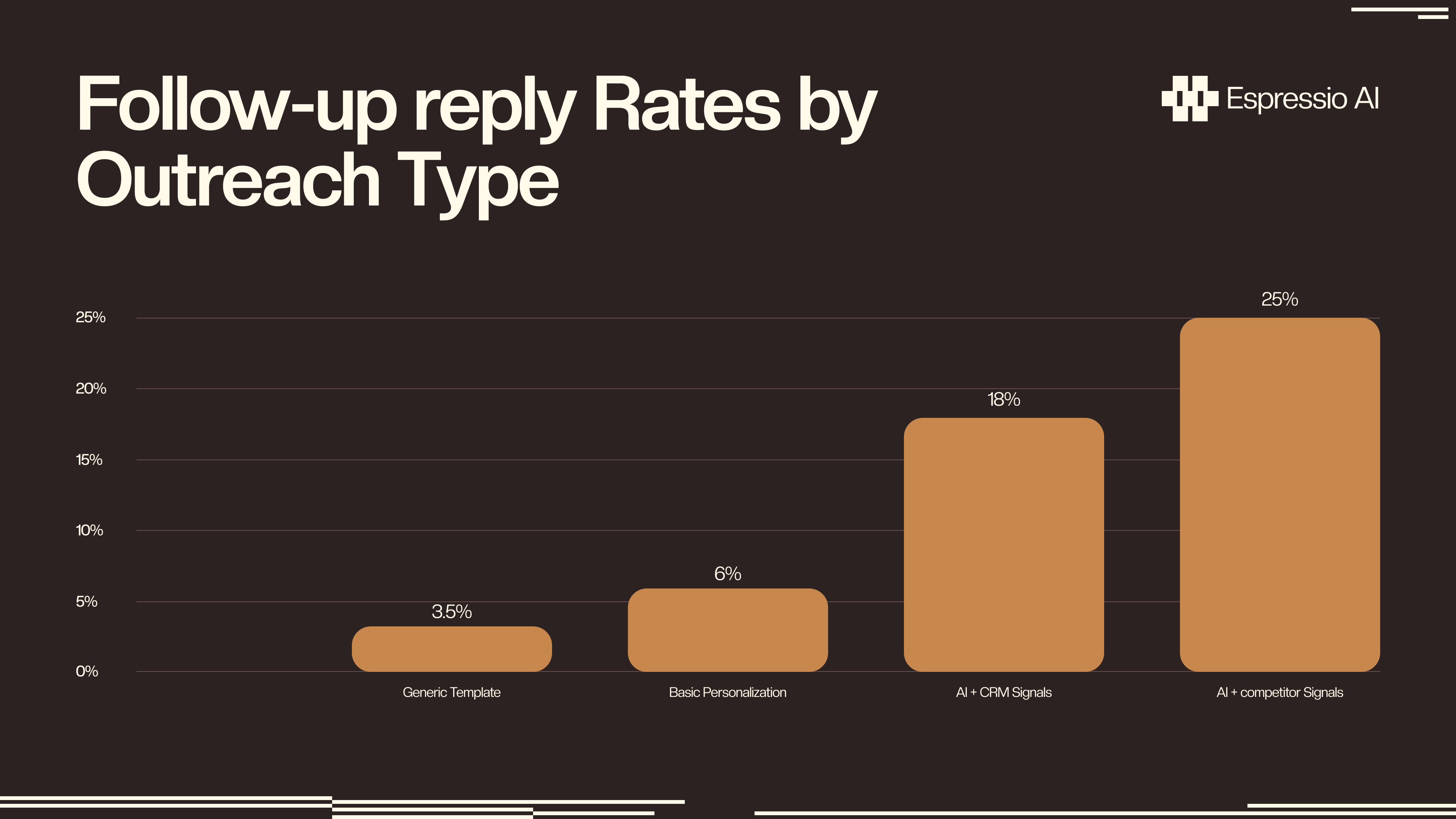
- AI-personalized outreach achieves 15-25% reply rates vs. the 3-5% industry average for generic templates (Autobound, 2026).
- The n8n trigger path removes manual initiation entirely: a deal stage change fires Claude automatically, drafts a follow-up, and logs it as a HubSpot task.
- Track three metrics to measure impact: email reply rate, speed to first touch, and deal velocity (days from creation to closed-won).
Why use Claude for HubSpot sales follow-up?
AI-personalized outreach achieves 15-25% reply rates compared to the 3-5% industry average for generic templates (Autobound, 2026). The difference is context. Claude can read live HubSpot data (deal stage, job title, last activity, email opens) and write a follow-up that reflects what actually happened in the deal, not what a template assumes.
Two problems drive that gap. The first is speed: 64% of buyers expect a response within 10 minutes of showing intent (HubSpot). A rep who has to pull contact history, check notes, and draft an email from scratch can’t hit that window consistently. An automated AI trigger can.
The second problem is personalization at scale. An email with the contact’s first name and company gets around a 6% reply rate. One that references the specific deal stage, the last conversation note, and a time-sensitive reason to respond gets 18-25%. Sales teams using AI-driven follow-up automation save 2-3 hours daily in the process (sales automation studies, 2025), and 86% report positive ROI within the first year (Sopro, 2026).
Teams using AI tools are 3.7 times more likely to hit their quotas (Gartner, via CirrusInsight, 2026), a pattern that holds across company sizes and deal types. The global sales automation market crossed $16 billion in 2025 on the back of those numbers.
According to Autobound’s 2026 State of AI Sales Prospecting report, AI-personalized outreach driven by live CRM signals (deal stage, job title, last email open) achieves reply rates of 15-25% compared to 3-5% for standard templates. That 5-8x improvement comes entirely from context quality, not word count or subject line tricks.
What are the three ways to connect Claude and HubSpot?
There are three paths: the official HubSpot connector inside Claude (5 minutes, no code), an n8n workflow automation (20-30 minutes, low code), and a custom HubSpot MCP server (developer-only, full API control). Most sales teams should start with the native connector and add n8n once they know which trigger events they want to automate.
Option 1: The native HubSpot connector (recommended). Built by HubSpot and available in Claude’s connector directory. It uses OAuth, connects in under 5 minutes, and requires no API keys or developer setup. Once connected, Claude can read contacts, deals, tasks, notes, and email engagement data. It can also write back to HubSpot directly from the chat window. The one limitation: it only runs when a human opens Claude and types a prompt. There’s no automatic triggering.
Option 2: n8n workflow automation. An n8n workflow listens for HubSpot events (deal stage changes, form submissions, email opens without replies), calls the Claude API, generates a follow-up draft, and posts it back as a HubSpot task. Best for teams that want zero-touch follow-up triggered by CRM events.
Option 3: HubSpot MCP server (developer path). The open-source mcp-hubspot package on GitHub (peakmojo/mcp-hubspot) gives Claude full HubSpot API access, vector storage for large pipelines, and caching for high-volume teams. Best for engineering teams building custom sales tooling on top of HubSpot.
| Native connector | n8n workflow | MCP server | |
|---|---|---|---|
| Setup time | Under 5 min | 20-30 min | Hours |
| Code required | No | Low | Yes |
| Automatic triggers | No | Yes | Yes |
| Write-back to HubSpot | Yes | Yes | Yes |
| Best for | Individual reps | Sales ops teams | Engineering teams |
The native connector and n8n path cover 90% of sales team use cases. The MCP server exists for teams that need programmatic control over what Claude reads, caches, or stores from HubSpot at scale.
Step-by-step: set up the native HubSpot connector for Claude
The HubSpot connector for Claude is the first CRM integration of its kind. It uses OAuth, connects in minutes, and gives Claude read and write access to your contacts, deals, tasks, and engagement data - no code required (HubSpot Knowledge Base, 2026).
Here are the five steps:
- Log into Claude at claude.ai. Go to Settings > Connectors > Browse Connectors.
- Under Web Connectors, find HubSpot and click Add.
- Navigate to Your Connectors and click Connect next to HubSpot.
- Select your HubSpot portal when prompted, then authorize the OAuth connection.
- Claude now has live access to your CRM. Test it: Show me my 5 deals closest to close date, with owner, stage, and last activity date.
Once connected, Claude can read contacts, deals, companies, tasks, and email open and click data. It can also write to HubSpot: create contacts, update deal properties, log notes, and create tasks, all from the chat window without switching tabs.
What surfaced on the first session: We connected Claude to a 14-deal HubSpot pipeline and asked it to surface deals with no activity in the past 7 days that were past the demo stage. It flagged two deals we’d mentally filed as “in progress,” both marked Decision Maker Engaged and untouched for 11 days. We sent follow-ups that afternoon. Both converted within the week.
One admin note: HubSpot controls connector access at the organization level. Individual reps connect their own HubSpot account, and Claude inherits those permissions automatically. A rep who can’t see the enterprise pipeline inside HubSpot can’t access it through Claude either. Admins can manage connector access org-wide in Settings > Integrations > Connected Apps.
The connector requires a paid Anthropic plan: Claude Pro ($20/month) for individual reps, or Team ($30/user/month) for shared sales teams. HubSpot’s free CRM tier is sufficient; no paid HubSpot plan is required.
Four prompt templates for AI-powered follow-up emails
Prompt quality determines whether Claude produces a generic email or one that actually gets a reply. Each template below pulls live CRM context (deal stage, last activity, contact job title) and structures Claude’s output for immediate use. Paste the relevant HubSpot fields into the brackets before sending.
Template 1: Speed-to-lead response (new inbound lead, use within 5 minutes of a form submission)
Contact: [FIRST NAME], [TITLE] at [COMPANY]
Deal stage: New Lead
Last activity: Form submission [DATE]
Form filled: [FORM NAME]

Write a 3-sentence follow-up email. Open with a specific reference to what
they submitted. Offer one concrete next step (15-min call or relevant resource).
Tone: direct, no filler. No "I hope this finds you well."
Template 2: Stalled deal re-engagement
Contact: [FIRST NAME], [TITLE] at [COMPANY]
Deal: [DEAL NAME], $[AMOUNT], [STAGE]
Last activity: [X] days ago ([LAST TOUCH TYPE])
Notes: [PASTE LAST 2 HUBSPOT NOTE ENTRIES]

Write a 4-sentence re-engagement email. Reference the specific deal context
from the notes. Create urgency using a time-sensitive angle (end of quarter,
product update, competitor move). Suggest one low-friction next step.
Template 3: Post-meeting follow-up
Contact: [FIRST NAME], [TITLE] at [COMPANY]
Meeting: [DATE], [DURATION]
My notes: [PASTE MEETING NOTES]
Deal stage: [STAGE]

Write a follow-up email confirming: (1) the 3 main things we discussed,
(2) their stated concerns, (3) my committed next steps with dates.
Max 150 words. Use bullet points for the action items.
Template 4: Email opened, no reply
Contact: [FIRST NAME], [TITLE] at [COMPANY]
Previous email: Sent [DATE], opened [X] times, no reply
Deal stage: [STAGE]
Their role: [JOB TITLE]

Write a 2-sentence follow-up. Do not mention that I saw they opened the
email. Reference something relevant to their role or industry instead.
End with a yes/no question.
Most reps treat Claude as a writing tool. The higher-value move is running it as a pipeline analyst first. Before drafting anything, ask: “Which of my open deals haven’t had activity in 7-plus days, are past the demo stage, and belong to contacts who opened my last email but didn’t reply?” That query takes 10 seconds. The answer tells you exactly which template to reach for and in which order. Landbase, one vendor in this space, reports reply rate lifts of 70% or more for signal-based AI outreach (Landbase, 2026). The templates are the starting point; context quality is what makes them work.
How to automate follow-up triggers with n8n
The native connector requires a human to initiate each prompt; n8n removes that step. A deal stage change in HubSpot fires a webhook, Claude drafts a follow-up using live CRM context, and the email draft lands as a HubSpot task, ready for one-click send.
The core workflow has four nodes:
- HubSpot trigger: fires when a deal stage changes (for example, “Demo Requested” to “Demo Scheduled”)
- HubSpot GET: fetches the deal’s contact name, company, owner, and last activity date
- Claude API HTTP Request: passes those properties into a follow-up prompt
- HubSpot Create Task: logs Claude’s draft as a note on the deal record and creates a follow-up task assigned to the deal owner
The HTTP Request body for the Claude API call:
{
  "model": "claude-sonnet-4-6",
  "max_tokens": 500,
  "messages": [
    {
      "role": "user",
      "content": "Contact: {{ $json.contact_firstname }} {{ $json.contact_lastname }}, {{ $json.jobtitle }} at {{ $json.company }}\nDeal: {{ $json.dealname }}, ${{ $json.amount }}, stage just changed to {{ $json.dealstage }}\nLast activity: {{ $json.notes_last_updated }}\n\nWrite a 3-sentence follow-up email appropriate for this deal stage change. Direct tone, specific to their stage, clear single CTA."
    }
  ]
}
At $3 per million input tokens, each follow-up draft costs roughly $0.002 in input tokens (around $0.017-0.02 all-in once output tokens are counted). At 20 drafts per day, that’s under $12 per month in API costs.
Other trigger events worth configuring once the core workflow runs:
- Email opened, no click within 24 hours: trigger a follow-up task with the original email body as context
- Deal stale for 7-plus days: fire a re-engagement draft using Template 2 above
- New contact from form submission: speed-to-lead prompt within 5 minutes of the submission timestamp
Leads contacted within 5 minutes of showing intent are 100 times more likely to qualify than those reached after 30 minutes (Verse.ai, 2025). No manual follow-up process hits that window consistently. An n8n trigger can.
The n8n setup requires a Claude API key (any paid Anthropic account) and an n8n instance, either cloud or self-hosted. The HubSpot trigger node is native to n8n. The Claude API call uses an HTTP Request node with bearer token authentication. Total configuration time runs 20-30 minutes for anyone comfortable with n8n’s drag-and-drop interface.
How do you measure reply rates and pipeline impact?
Measuring Claude’s impact requires one baseline week of manual follow-ups before switching, then tracking three HubSpot metrics: email reply rate, average days to next activity, and deal velocity. Teams using AI automation tools report 14.5% higher sales productivity on average (sales automation studies, 2026).
Inside HubSpot, start with reply rate: the Sequences report shows replies per email sent, with 3-5% as the typical baseline and 15% as the AI target. Speed to first touch is the second core metric, measuring how many hours pass between a deal being created and the first email going out. For inbound leads, the AI target is under 5 minutes.
Track deal velocity and task completion separately:
- Deal velocity: average days from creation to closed-won. Compare 30-day windows before and after enabling automation.
- Task completion rate: what percentage of AI-generated follow-up tasks reps actually complete. A low rate is your adoption signal; the workflow needs adjusting if reps skip the tasks.
HubSpot automation users consistently report exceeding revenue targets once AI-driven follow-up runs at scale (HubSpot partner research). Reply rate and deal velocity are the two metrics where AI personalization shows up fastest, usually within the first two to three weeks.
Frequently asked questions
Does the HubSpot connector for Claude cost extra?
The connector itself is free. You need a paid Anthropic subscription. Claude Pro ($20/month) works for individual reps; Team ($30/user/month) is better for shared sales teams. HubSpot’s free CRM tier is sufficient for the connector; no paid HubSpot plan is required to get started.
Can Claude write to HubSpot, or does it only read?
Both. The native connector lets Claude create contacts, update deal properties, log notes, and create tasks directly from the chat window. Ask it to “create a follow-up task on the Acme deal for Thursday at 9am” and it writes the task to HubSpot without you leaving Claude. For automated write-back, the n8n path gives more control over what gets logged and when.
How does Claude access HubSpot data securely?
The integration uses HubSpot’s OAuth system, which means Claude inherits the user’s existing HubSpot permissions automatically. A rep who can’t see the enterprise pipeline inside HubSpot can’t access it through Claude either. HubSpot admins can manage connector access organization-wide in Settings > Integrations > Connected Apps.
What’s the difference between the native connector and using the Claude API directly?
The native connector is conversational: you describe what you want, Claude reads your CRM and responds. The API path via n8n or a custom MCP server is event-driven; CRM changes trigger Claude automatically, with no human initiating the prompt. Start with the connector to validate which use cases are worth automating. Build the API path when you need hands-free execution at scale.
Conclusion
The HubSpot connector is live and free with any paid Anthropic plan. The four templates above are copy-paste ready. Start with the speed-to-lead template on your next form submission.
- Connect the HubSpot connector and run the stalled deal query against your five oldest open deals
- Use Template 2 on any deal with no activity in the past 7 days
- Set up the n8n trigger for your highest-volume deal stage transition
- Track reply rate, speed to first touch, and deal velocity over the next 30 days
Most reps who connect Claude to HubSpot find at least one deal they forgot to follow up on in the first session. That deal is in your pipeline. Give Claude 10 seconds to find it.
Wondering which AI automations could have the biggest impact on your business? Get in touch with us and we’ll walk you through what’s possible and how to get started.